General
Sense RTL user guide
Meet Sense RTL - align your site's layout right-to-left with a single app. With Sense RTL you can give local customers in Israel a much better experience. Switching your site's layout to right-to-left has never been this quick and easy, and with all these features, your local visitors will quickly turn into customers. 1. Choose…
Sense Apps3 min read

Listen to this article
Automatic narration · about 6 min
0:00--:--


Meet Sense RTL - align your site's layout right-to-left with a single app. With Sense RTL you can give local customers in Israel a much better experience. Switching your site's layout to right-to-left has never been this quick and easy, and with all these features, your local visitors will quickly turn into customers.
1. Choose the plan that best fits your store. Sense RTL offers several plans, so you can pick the one that works best for you.
- Right-to-left (RTL) alignment
- Hebrew translation
- Notification (email) translation
- Hebrew fonts
- Custom text for the "Buy now" button
- Theme updates
- Support
- Payment method display
- Accessibility module
- Accessibility statement generator
- Custom CSS editing
To choose a plan, click here!
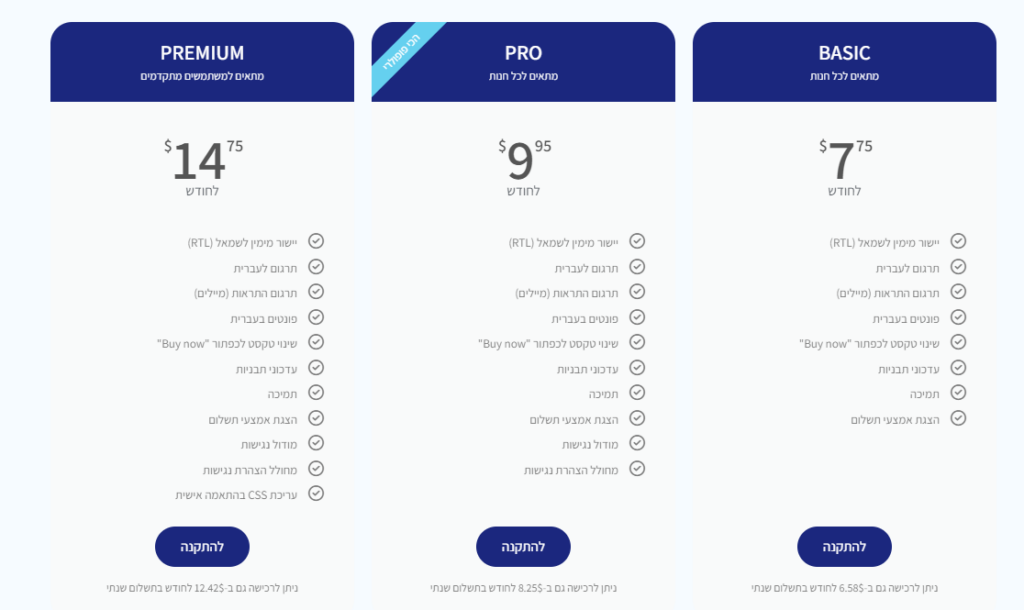
2. After you choose a plan and add the app to your store, you'll land on the main screen
with all the options included in the plan you chose for your store.
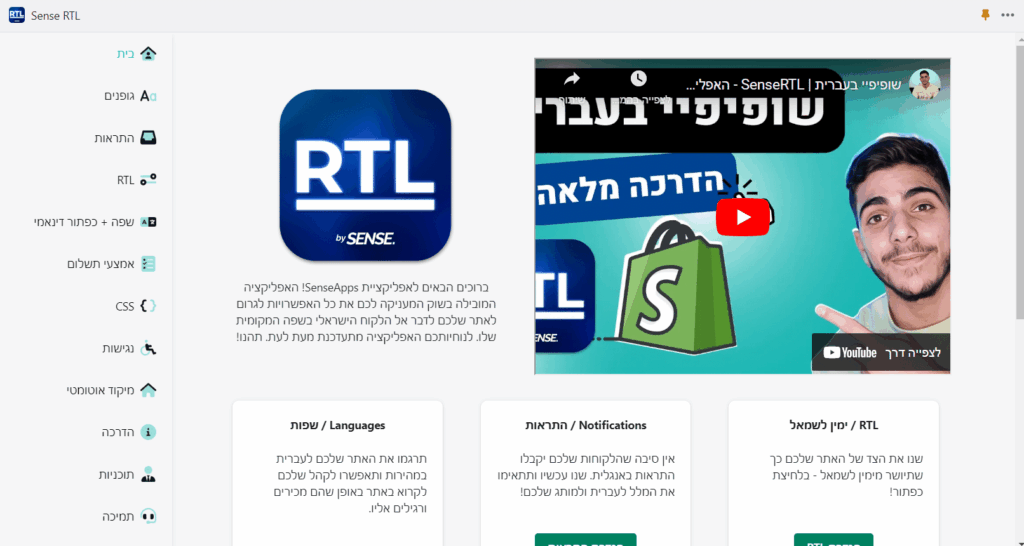
Option 1:
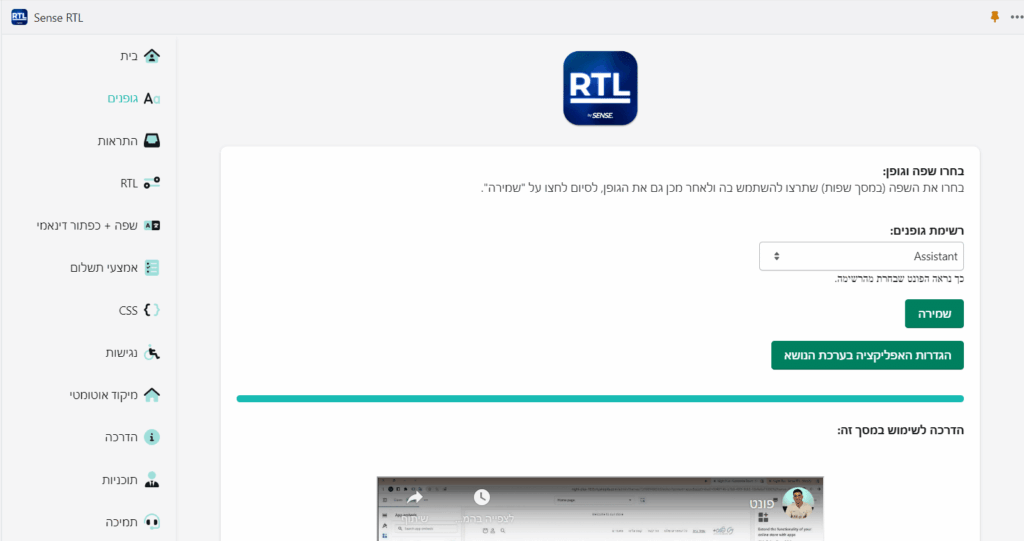
Fonts - Here you can choose the font for your store, all of which, of course, support Hebrew.
Step 1 - Choose your preferred font from the font list.
Step 2 - Click "Save".
Step 3 - Go to "App settings in theme".
Step 4 - Make sure the app is enabled and "Activate Font" is checked.
Option 2:
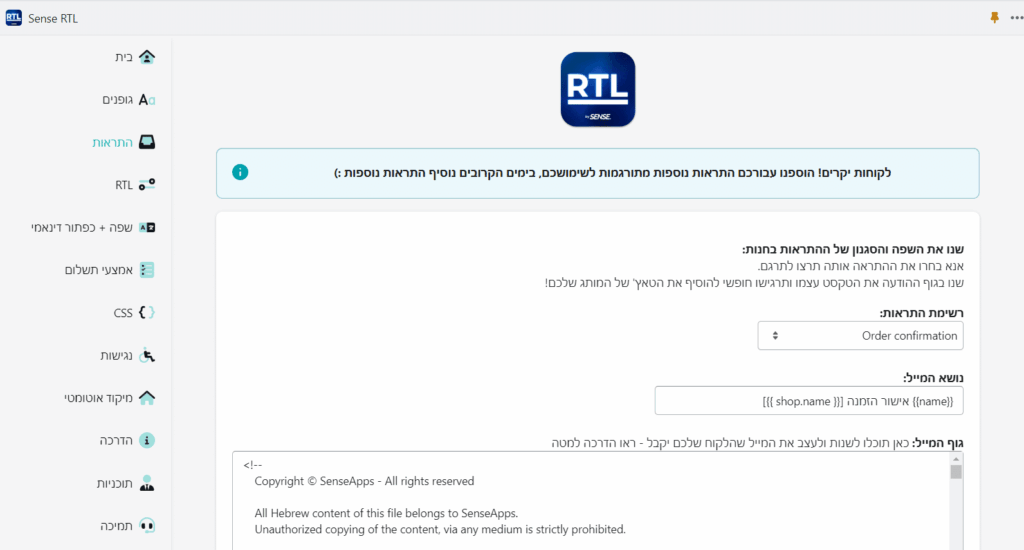
Notifications - Here you can change the content of your store's email notifications.
Step 1 - Choose a notification from the list.
Step 2 - Edit the email body.
Step 3 - Click "Copy text".
Step 4 - Go to the notifications management screen.
Step 5 - Delete the existing content and paste what you copied.
Option 3:
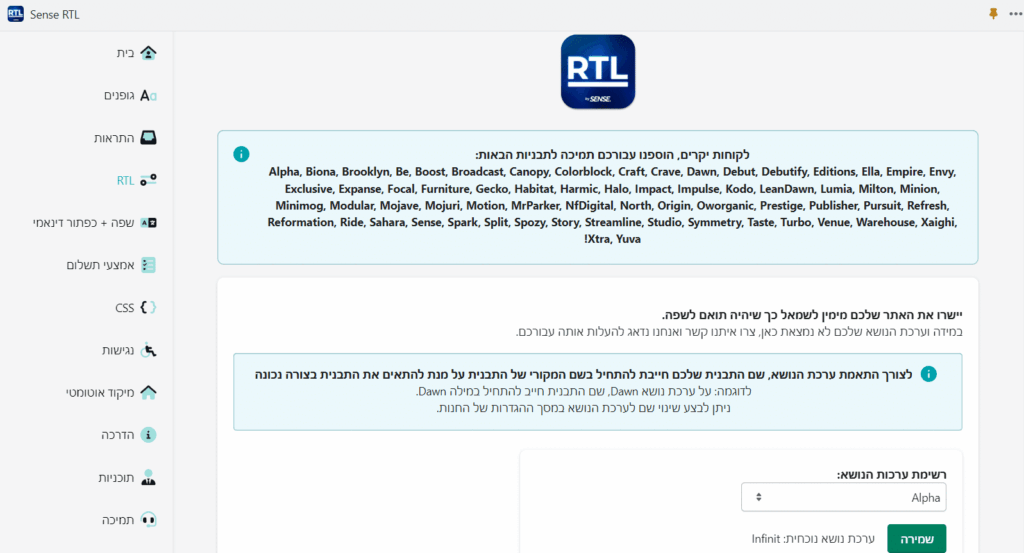
RTL - Here you can switch your store's theme to a right-to-left (RTL) layout.
Step 1 - Choose the theme from the list.
Step 2 - Click "Save".
Step 3 - Go to "App settings in theme".
Step 4 - Make sure the app is enabled and "Activate RTL" is checked.
Option 4:
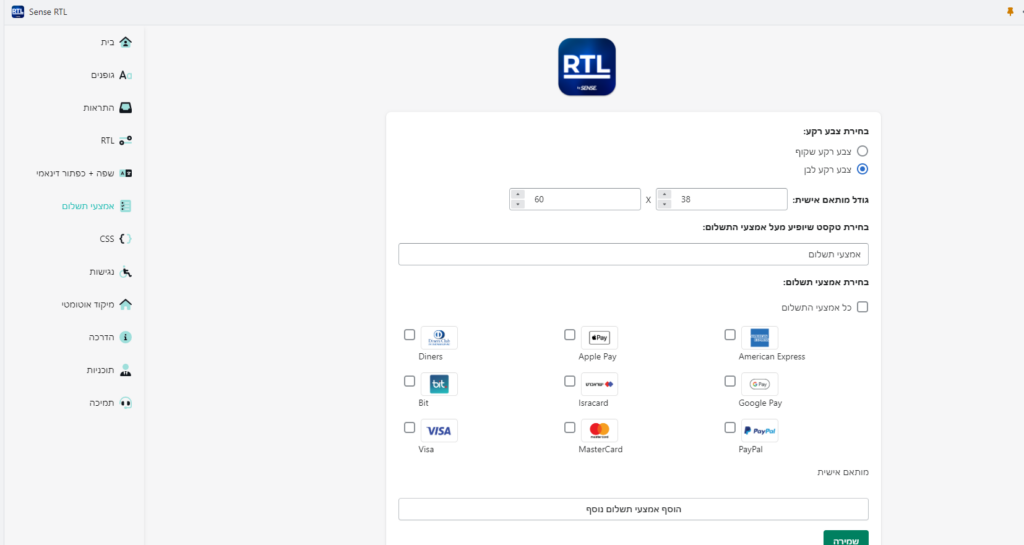
Payment methods - Here you can change how payment methods are displayed in your store.
Step 1 - Choose the background color for the payment methods.
Step 2 - Enter the text that will appear above the payment methods.
Step 3 - Choose the payment methods you want to show on the site.
Step 4 - Click the "Save" button.
Step 5 - Click the "App settings in theme" button.
Step 6 - Make sure the app is enabled and "Activate footer banners" is checked to show the payment methods in the site footer,
or that "Activate product page banners" is checked to show them on the product page.
Option 5:
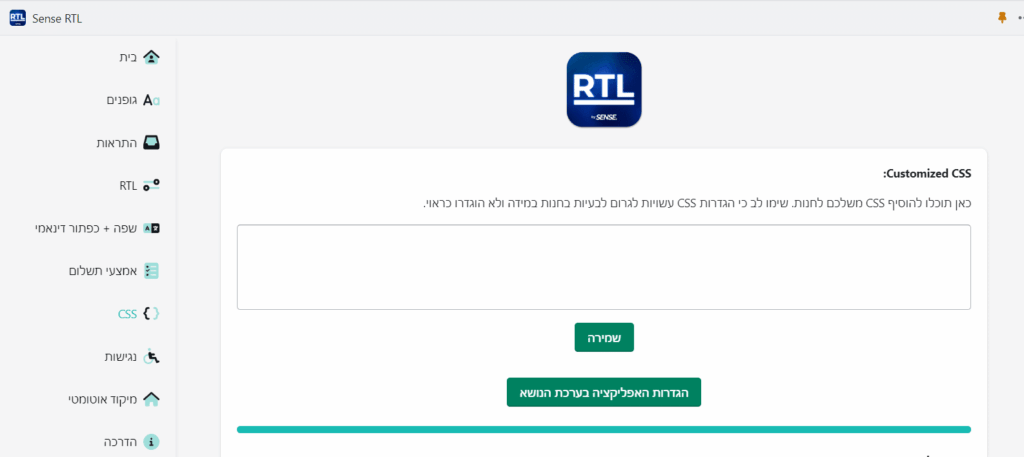
CSS - Here you can add custom CSS code to your store.
Step 1 - Edit the CSS in the text box.
Step 2 - Click "Save".
Step 3 - Go to "App settings in theme".
Step 4 - Make sure the app is enabled and "Activate customized CSS" is checked.
Option 6:
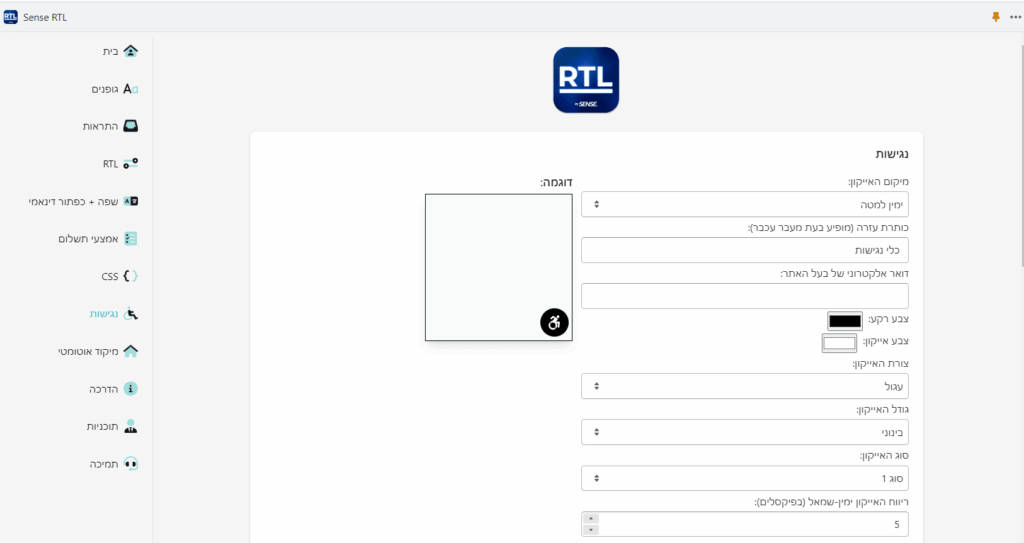
Accessibility - Here you can add a customized accessibility tool to your store.
Step 1 - Design the accessibility button using the options above.
Step 2 - Click the "Accessibility statement" button to create your statement template.
Step 3 - Fill in the required details, accept the terms and click "Create page content".
Step 4 - The system has now generated your accessibility statement content. Click "Copy text" to copy it, then click "Go to page creation" to create a new page in Shopify.
Step 5 - Paste the accessibility statement content into the new page, create the page and save its link.
Step 6 - Paste the link to the statement page into the app's accessibility settings and click the "Save" button.
Step 7 - Go to "App settings in theme".
Step 8 - Make sure the app is enabled and "Activate accessibility" is checked.
Our support channels:
We offer a range of support channels to answer any question, problem or issue that comes up while you use our app.
Our website: sense-apps.com
Our email: [email protected]
WhatsApp: +972 52-254-1225
Our app
The app mentioned in this article.